
COCORO Controls and Settings
How to set up a visual novel: reading, saves, volume, and language, without invented keybinds.
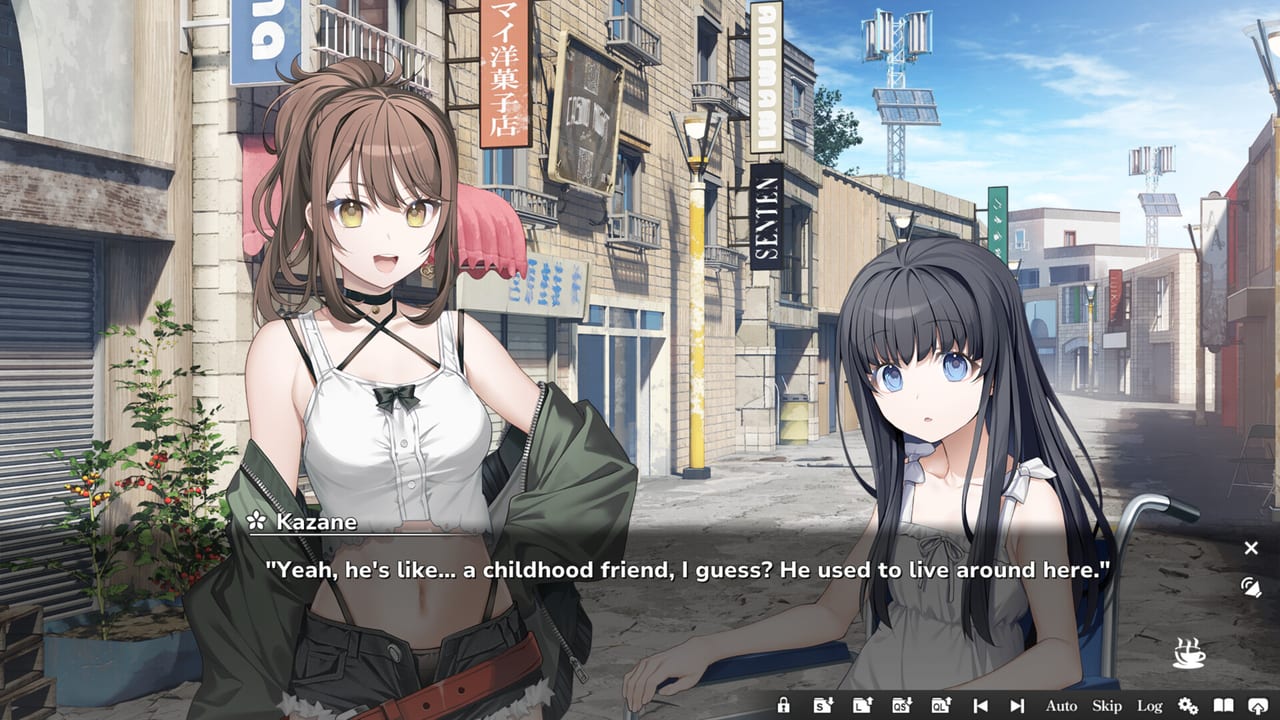
COCORO plays like a visual novel, not like an action game. Steam lists it as single-player, playable at your own pace, without timed input, and save anytime, with custom volume controls and stereo sound. Mouse, keyboard, and touch are the published input methods. This page tells you what to look for in the config screens and why those options matter. It does not invent a keybind table Frontwing has not posted as a public cheat-sheet.
If you are installing for the first time, pair this with getting started. If you care about handheld buttons, trackpads, and sleep, skip ahead to Steam Deck after you understand the PC verbs. Specs live on system requirements. How long a session lasts is playtime. The demo is the safest place to test UI language and volume before you pay.
What to expect from a Frontwing novel
A typical PC visual novel, including this one, is a reading loop. You advance text, sometimes wait for a voice line, sometimes jump into a menu, and sometimes hide the interface so a CG can sit on screen. You should expect some form of each of the following, even if the exact key or click changes:
- Advance: click, tap, or a confirm key to show the next line or page.
- Skip: a held or toggled fast-forward for text you have already seen, or for unread text if you enable that risk.
- Auto: the engine turns pages after voice or after a delay, so you can watch with your hands off.
- Backlog / history: a scrollback of recent lines when you missed a name in Tsukumo.
- Hide UI: a way to clear the text box for screenshots or for looking at a garden background.
- Save / load: slot menus plus, on many engines, a quick save. Steam’s save-anytime tag means you are not locked to chapter gates.
- Config: language, window mode, and volume sliders.
Do not copy Grisaia or ATRI keybinds from memory and assume they shipped unchanged. Open COCORO’s own config. If a control overlay appears on first launch, read it. If it does not, tab through Config, System, or the right-click menu until you see skip, auto, and sound. Touch users can treat the screen as the mouse: tap to advance, long-press or a UI button for menus.
There are no Quick Time Events in the marketing, no rhythm minigame, and no published fail state for clicking too slowly. If a scene asks you to choose a line, that is a story beat, not a reflex test. The plot is linear and one-heroine focused, so you are not hunting a hidden controller scheme for extra routes.
Volume, stereo, and comfort
Custom volume controls are a listed Steam feature. In practice that usually means separate sliders for master, BGM, voices, and effects, or a close variant. Set voices high if you came for Hina Youmiya and the rest of the cast. Set BGM where Fuminori Matsumoto’s tracks support a scene without drowning subtitles. Stereo is the listed mix; headphones on a laptop beat tiny speakers when Cocoro is speaking softly.
If the opening movie or a voiced scene is silent, check Windows output device, exclusive-mode exclusive apps, and the DirectSound / Windows Media Player 9 notes on the spec page before you assume the novel is broken. Mute individual sliders rather than killing system volume if you still want Steam overlay sounds.
Auto-play delay and text speed, when present, are comfort settings that change playtime more than they change hardware load. A long auto delay with full Japanese voice is a lean-back mode. A short delay with voices down is a reading mode. Neither is required. Steam’s play-at-your-own-pace tag is the design intent: you are allowed to sit on a box.
Language switch and the Change Language achievement
COCORO ships Japanese with full audio. English, Simplified Chinese, and Traditional Chinese have interface and subtitles. The male protagonist remains unvoiced, which is standard for this staff’s novels. Changing the game language is a listed Steam achievement titled Change Language. You do not need a second playthrough. Open the language option, switch, and let Steam register the trophy.
That makes language a tools topic as much as a story topic. Try English text with Japanese voice if you want performances plus readable boxes. Try full Japanese if you are comfortable. Try a Chinese UI if that is your interface language. The demo is the cheap way to confirm glyphs, font size, and whether you like the mix. The rest of the 12 trophies, mostly chapter completes, are on achievements.
Steam itself has a client language that is not the same as in-game language. Set the novel inside COCORO. Cloud saves should keep story progress; they may or may not keep every config flag across PCs. After a Cloud sync, glance at volume and language once so you do not start a chapter in the wrong subtitle set.
Saves, Cloud, and handheld input
Save anytime means you can park the game in the middle of a conversation in the ruined city. Use slots if you like named bookmarks; use whatever quick save the menu offers if you only need a crash net. Steam Cloud is enabled for this app, so a desktop slot can meet you on a Steam Deck. Leave the client a few seconds to upload after a save if you are about to yank a handheld into sleep.
Family Sharing follows Steam’s rules; it is not a second control scheme. Accessibility-style tags on the store (own pace, no timed input, save anytime) are the design promises. They do not replace a full screen-reader profile, and this wiki will not claim one that Valve did not publish.
For Deck and touch, think in verbs, not in WASD. Right trackpad or touchscreen tap advances. A menu button should open skip, auto, save, and config. If the Verified layout already maps those verbs, do not build a community layout until you have tried the default. Details and battery notes belong on the Steam Deck page, not in a PC bind list.
Once skip, auto, backlog, volume, and language feel right, stop fiddling. COCORO is a summer in a botanical garden, not a settings sandbox. Return to getting started or the Tools Hub if you still need install or spec answers. Dates live on the launch recap, storefronts on links, and a spoiler-light verdict on the review. Then let Hinata walk into Tsukumo with the text box already behaving.
Frequently Asked Questions
Quick answers for first-time readers of COCORO.
What are the exact keyboard binds for COCORO?
This wiki does not invent a bind table. Open in-game config and any first-run overlay. Expect advance, skip, auto, backlog, hide UI, and save/load as in most visual novels.
Does COCORO have timed button prompts?
Steam tags it playable at your own pace and without timed input. Read, click, or use auto. You are not graded on reflexes.
How do I unlock the Change Language achievement?
Switch the in-game language in settings. Japanese has full audio; English and both Chinese variants have UI and subtitles. See achievements.
Can I control BGM and voices separately?
Steam lists custom volume controls and stereo sound. Look for per-category sliders in config. Hardware audio issues are covered under system requirements.
How do I play COCORO on Steam Deck?
It is Verified. Use the default layout first, then read the dedicated Steam Deck notes for Cloud, sleep, and battery.
Where should I test settings before buying?
The free Steam demo from 20 August 2026. Confirm language, voices, and UI, then follow getting started for the full game.